> ## Documentation Index
> Fetch the complete documentation index at: https://superform-cb7ef652-docs-strategy-visual-walkthrough.mintlify.site/llms.txt
> Use this file to discover all available pages before exploring further.
# Strategy Canvas Walkthrough
> A visual, click-by-click tour of the Strategy Canvas: from the vault list to a working deposit strategy.
This is a visual tour of the Strategy Canvas — what you click, what you see, and how to build a working deposit strategy from scratch. It teaches the product surface first; for the JSON/API form of the same strategy, see the [Strategy Quickstart](/operate/strategy/quickstart).
Prefer to author by API or point an agent at the docs? The [Strategy Quickstart](/operate/strategy/quickstart) has the equivalent JSON payloads, and [Strategy DSL](/operate/strategy/dsl) / [Action Config](/operate/strategy/action-config) are the field references.
## 1. Find your vaults
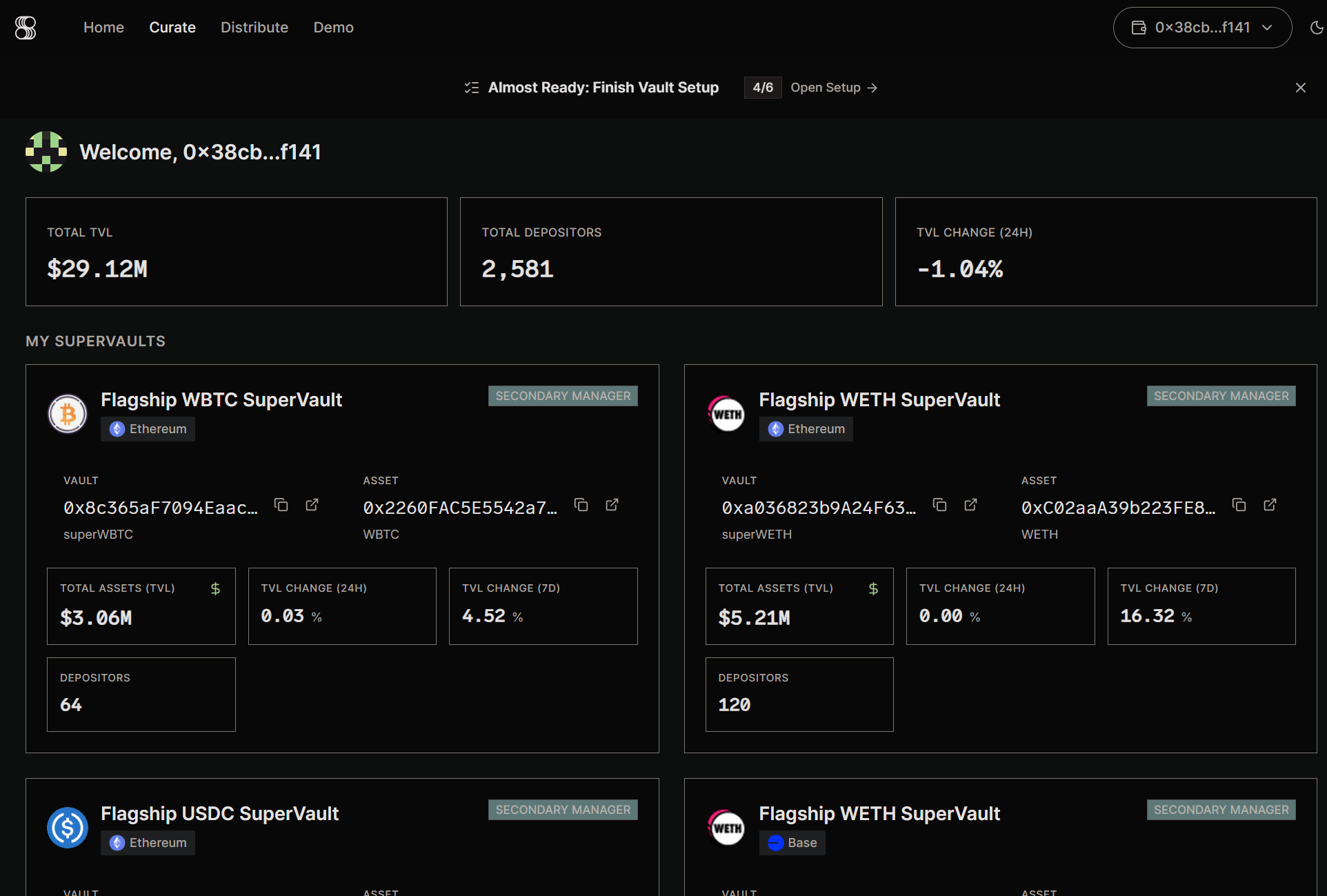 **Click** `Curate` in the top nav. This is the curator home — the entry point for managing SuperVaults.
You see a `Welcome` header, three top-line metrics (Total TVL, Total Depositors, TVL Change 24h), then a **My SuperVaults** grid. Each card is one vault you curate, with its chain badge, vault and asset addresses, asset symbol (e.g. `superWETH`), TVL, 24h/7d change, depositors, and a badge showing your role on that vault (e.g. `SECONDARY MANAGER`).
## 2. Open the Strategy Canvas
**Click** `Curate` in the top nav. This is the curator home — the entry point for managing SuperVaults.
You see a `Welcome` header, three top-line metrics (Total TVL, Total Depositors, TVL Change 24h), then a **My SuperVaults** grid. Each card is one vault you curate, with its chain badge, vault and asset addresses, asset symbol (e.g. `superWETH`), TVL, 24h/7d change, depositors, and a badge showing your role on that vault (e.g. `SECONDARY MANAGER`).
## 2. Open the Strategy Canvas
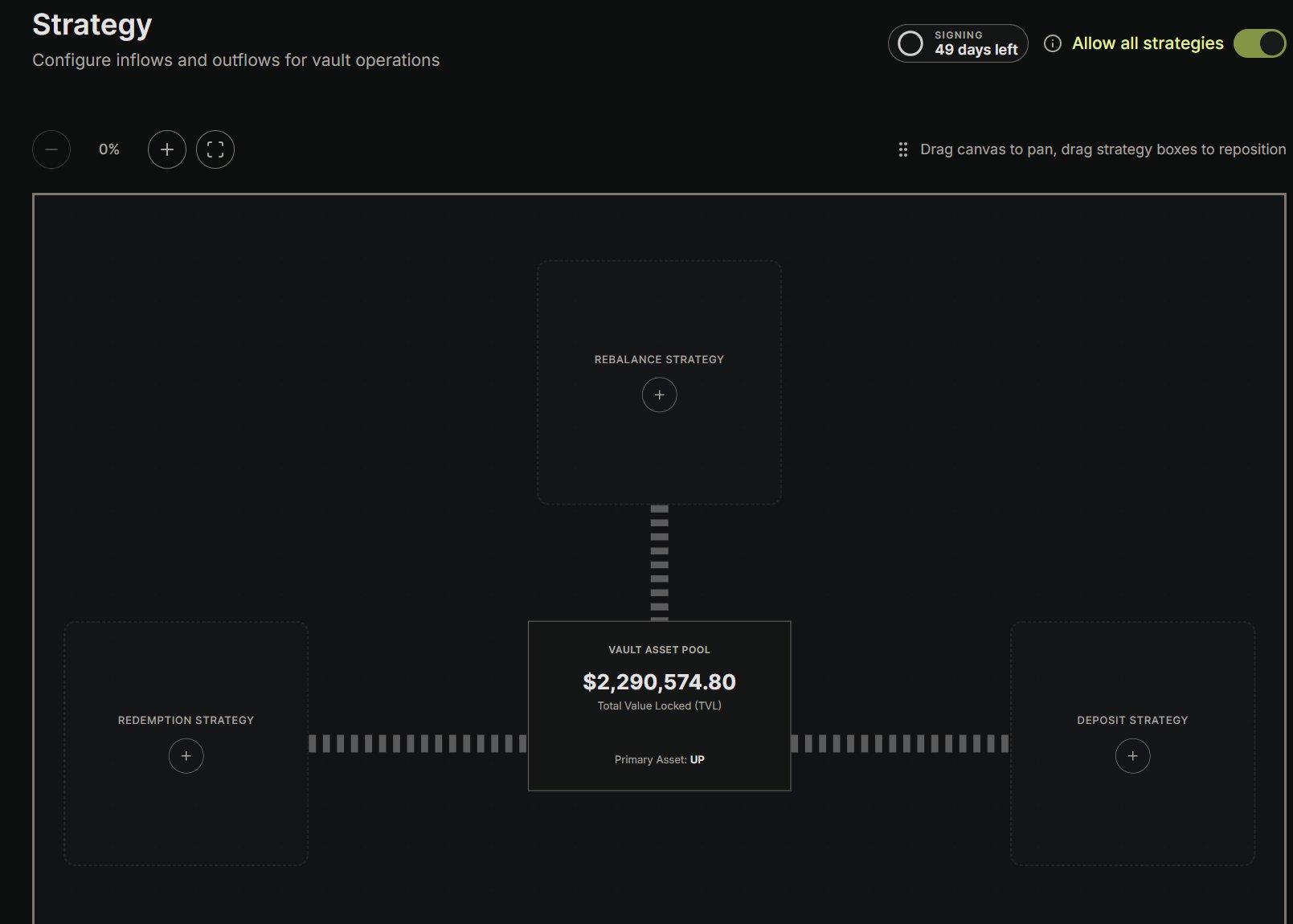 Open a vault and click **Strategy** in its sidebar. The canvas arranges three lanes around the central **Vault Asset Pool** node (which shows the vault's TVL and primary asset). Each lane holds strategy cards; the `+` button on a lane adds a new strategy on that side. Above the canvas are zoom controls, a panning hint, a **Signing** key indicator, and an **Allow all strategies** master toggle.
Each strategy card shows its name, priority rank, lifecycle state (e.g. `Idle`), and its yield source with an allocation percentage.
## The three lanes
The canvas is organized into three lanes. This is a simplified overview to orient you in the UI — see [Strategy Canvas](/operate/ui/strategy) and [Strategy DSL](/operate/strategy/dsl) for exact semantics.
* **Inflow — the "Deposit" lane.** Defines how assets sitting in the vault's reserve ("Free Assets") get deployed into underlying yield sources. A deposit into the SuperVault mints shares immediately, but the money is parked in Free Assets; the actual investment happens in a later transaction triggered by this lane's rules.
* **Outflow — the "Withdraw" lane.** Defines how the Free Assets reserve is replenished over time. Redemptions are asynchronous (request → fulfill → claim), which draws down Free Assets, so this lane tops the reserve back up by pulling from yield sources.
* **Rebalance.** Everything else — moving capital between yield sources, swaps, and bridges. Its target is derived from the vault, so this lane has no yield-source picker.
## The strategy editor
Open a vault and click **Strategy** in its sidebar. The canvas arranges three lanes around the central **Vault Asset Pool** node (which shows the vault's TVL and primary asset). Each lane holds strategy cards; the `+` button on a lane adds a new strategy on that side. Above the canvas are zoom controls, a panning hint, a **Signing** key indicator, and an **Allow all strategies** master toggle.
Each strategy card shows its name, priority rank, lifecycle state (e.g. `Idle`), and its yield source with an allocation percentage.
## The three lanes
The canvas is organized into three lanes. This is a simplified overview to orient you in the UI — see [Strategy Canvas](/operate/ui/strategy) and [Strategy DSL](/operate/strategy/dsl) for exact semantics.
* **Inflow — the "Deposit" lane.** Defines how assets sitting in the vault's reserve ("Free Assets") get deployed into underlying yield sources. A deposit into the SuperVault mints shares immediately, but the money is parked in Free Assets; the actual investment happens in a later transaction triggered by this lane's rules.
* **Outflow — the "Withdraw" lane.** Defines how the Free Assets reserve is replenished over time. Redemptions are asynchronous (request → fulfill → claim), which draws down Free Assets, so this lane tops the reserve back up by pulling from yield sources.
* **Rebalance.** Everything else — moving capital between yield sources, swaps, and bridges. Its target is derived from the vault, so this lane has no yield-source picker.
## The strategy editor
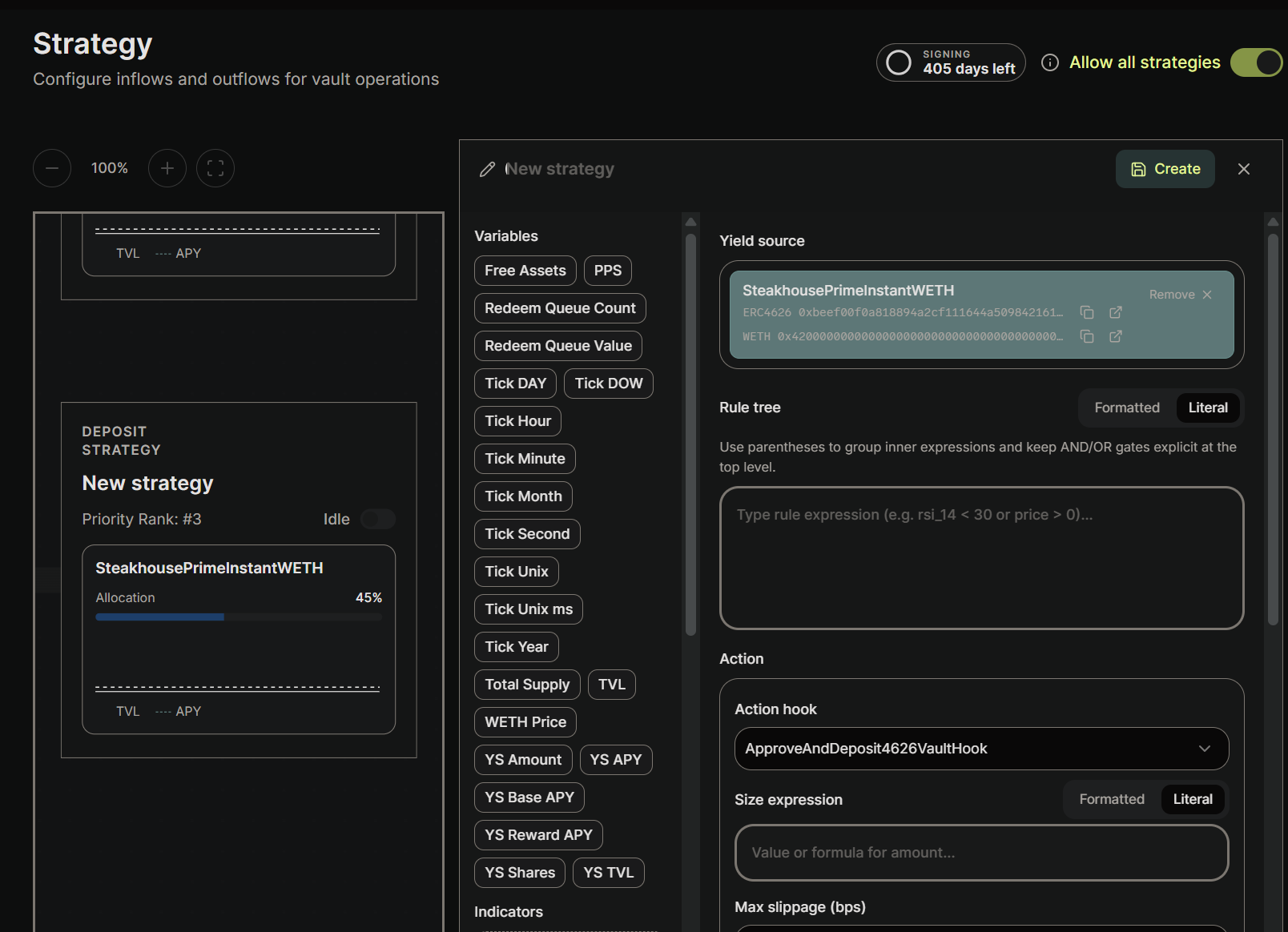 Opening or managing a strategy reveals a two-column editor. The left column is the **Variables** palette — the draggable/typed building blocks for your expressions:
* **Vault-scoped:** `Free Assets`, `PPS`, `Total Supply`, `TVL`, `Redeem Queue Count`, `Redeem Queue Value`.
* **Yield-source-scoped:** `YS Amount`, `YS Shares`, `YS APY`, `YS Base APY`, `YS Reward APY`, `YS TVL`.
* **Price & time:** `WETH Price` (the asset price), and the `Tick *` family (`Tick Unix`, `Tick Hour`, `Tick DOW`, `Tick Day`, `Tick Month`, `Tick Year`, …).
* **Indicators:** custom aliases you define (moving averages, RSI, etc.).
The right column is the form: **Yield source**, **Rule tree** (the trigger), **Action hook**, **Size expression**, **Max slippage**, and **Execution optimization**.
## Build a deposit strategy
The rest of this page builds one deposit strategy end to end: *when the idle reserve climbs above 5% of TVL, deploy the excess into a yield source.*
### 1. Add a deposit strategy
On the **Deposit** lane (right side), hover to reveal a `DEPOSIT STRATEGY +` placeholder and click the `+`. The editor opens with a draft card on the left and the empty form on the right.
### 2. Name it
Opening or managing a strategy reveals a two-column editor. The left column is the **Variables** palette — the draggable/typed building blocks for your expressions:
* **Vault-scoped:** `Free Assets`, `PPS`, `Total Supply`, `TVL`, `Redeem Queue Count`, `Redeem Queue Value`.
* **Yield-source-scoped:** `YS Amount`, `YS Shares`, `YS APY`, `YS Base APY`, `YS Reward APY`, `YS TVL`.
* **Price & time:** `WETH Price` (the asset price), and the `Tick *` family (`Tick Unix`, `Tick Hour`, `Tick DOW`, `Tick Day`, `Tick Month`, `Tick Year`, …).
* **Indicators:** custom aliases you define (moving averages, RSI, etc.).
The right column is the form: **Yield source**, **Rule tree** (the trigger), **Action hook**, **Size expression**, **Max slippage**, and **Execution optimization**.
## Build a deposit strategy
The rest of this page builds one deposit strategy end to end: *when the idle reserve climbs above 5% of TVL, deploy the excess into a yield source.*
### 1. Add a deposit strategy
On the **Deposit** lane (right side), hover to reveal a `DEPOSIT STRATEGY +` placeholder and click the `+`. The editor opens with a draft card on the left and the empty form on the right.
### 2. Name it
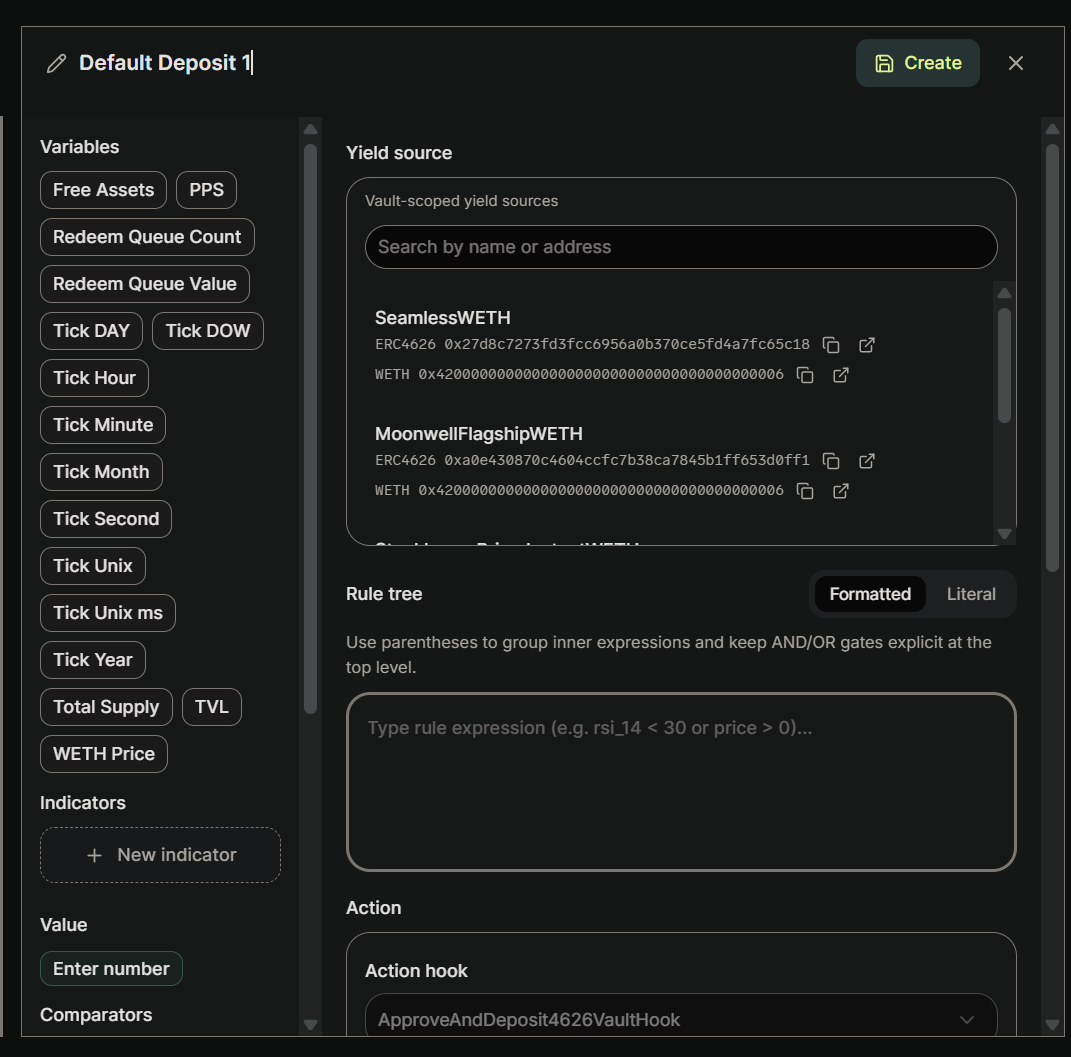 Edit the name field in the top-left. In the screenshots it's called `Default Deposit 1`.
### 3. Select a yield source
In the **Yield source** section, search the vault's whitelisted sources by name or address and pick one (here, `SeamlessWETH`). Each entry shows its type (`ERC4626`) and addresses.
### 4. Write the trigger (rule tree)
Edit the name field in the top-left. In the screenshots it's called `Default Deposit 1`.
### 3. Select a yield source
In the **Yield source** section, search the vault's whitelisted sources by name or address and pick one (here, `SeamlessWETH`). Each entry shows its type (`ERC4626`) and addresses.
### 4. Write the trigger (rule tree)
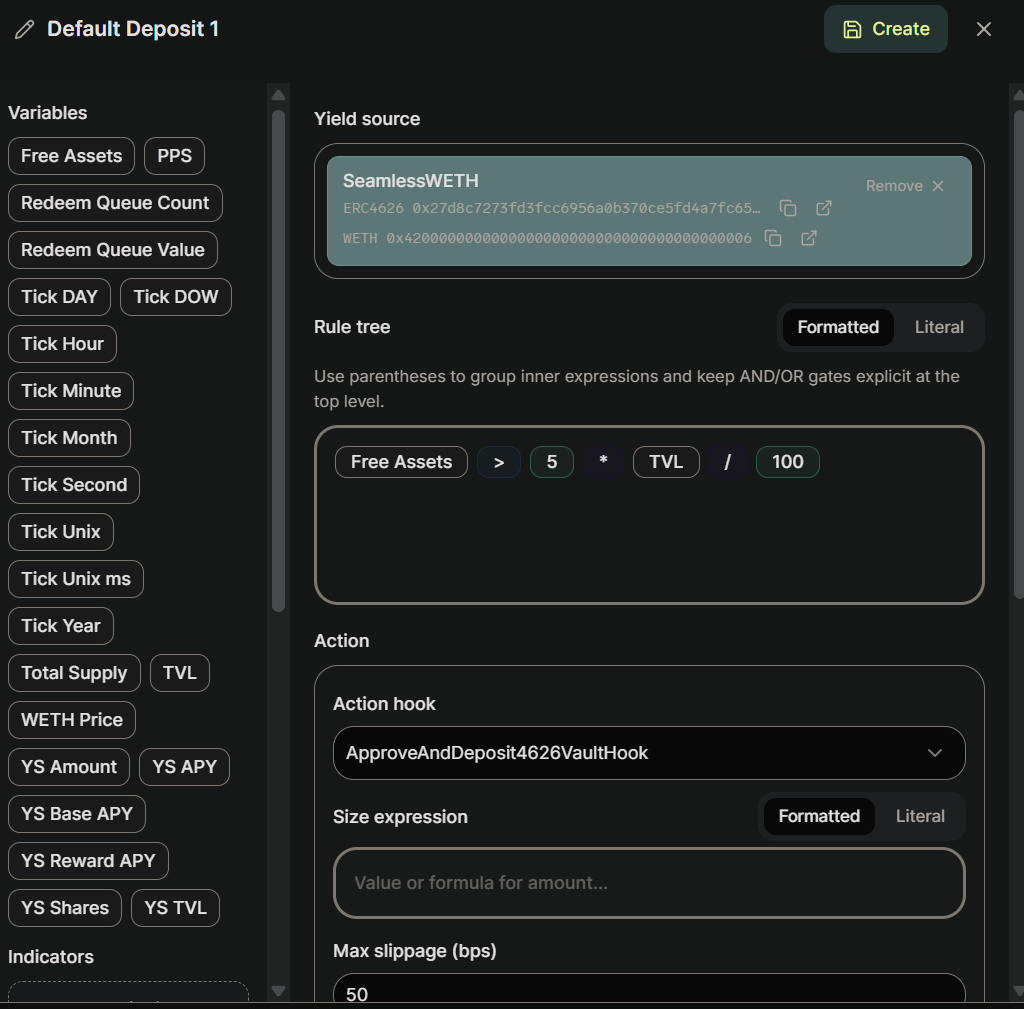 The **Rule tree** is a boolean expression built from the Variables on the left. When it evaluates to `true`, the strategy fires — which is why it's also called the *trigger expression*.
A common pattern is "deposit when the idle reserve exceeds X% of TVL". For a 5% threshold:
```text theme={null}
Free Assets > 5 * TVL / 100
```
Write the threshold as `5 * TVL / 100`, not `0.05 * TVL`. Both sides then scale identically, so the engine's raw-integer comparison is exact without any explicit decimal handling. Dividing by the literal `100` is always safe; avoid dividing by a *variable* (like a price or PPS), which the validator can reject at save time.
### 5. Choose the action hook
When the trigger passes, the strategy calls a **hook**. For a deposit into an ERC-4626 yield source, that hook is `ApproveAndDeposit4626VaultHook`, which the **Action hook** dropdown selects by default.
### 6. Set the size expression
The **Rule tree** is a boolean expression built from the Variables on the left. When it evaluates to `true`, the strategy fires — which is why it's also called the *trigger expression*.
A common pattern is "deposit when the idle reserve exceeds X% of TVL". For a 5% threshold:
```text theme={null}
Free Assets > 5 * TVL / 100
```
Write the threshold as `5 * TVL / 100`, not `0.05 * TVL`. Both sides then scale identically, so the engine's raw-integer comparison is exact without any explicit decimal handling. Dividing by the literal `100` is always safe; avoid dividing by a *variable* (like a price or PPS), which the validator can reject at save time.
### 5. Choose the action hook
When the trigger passes, the strategy calls a **hook**. For a deposit into an ERC-4626 yield source, that hook is `ApproveAndDeposit4626VaultHook`, which the **Action hook** dropdown selects by default.
### 6. Set the size expression
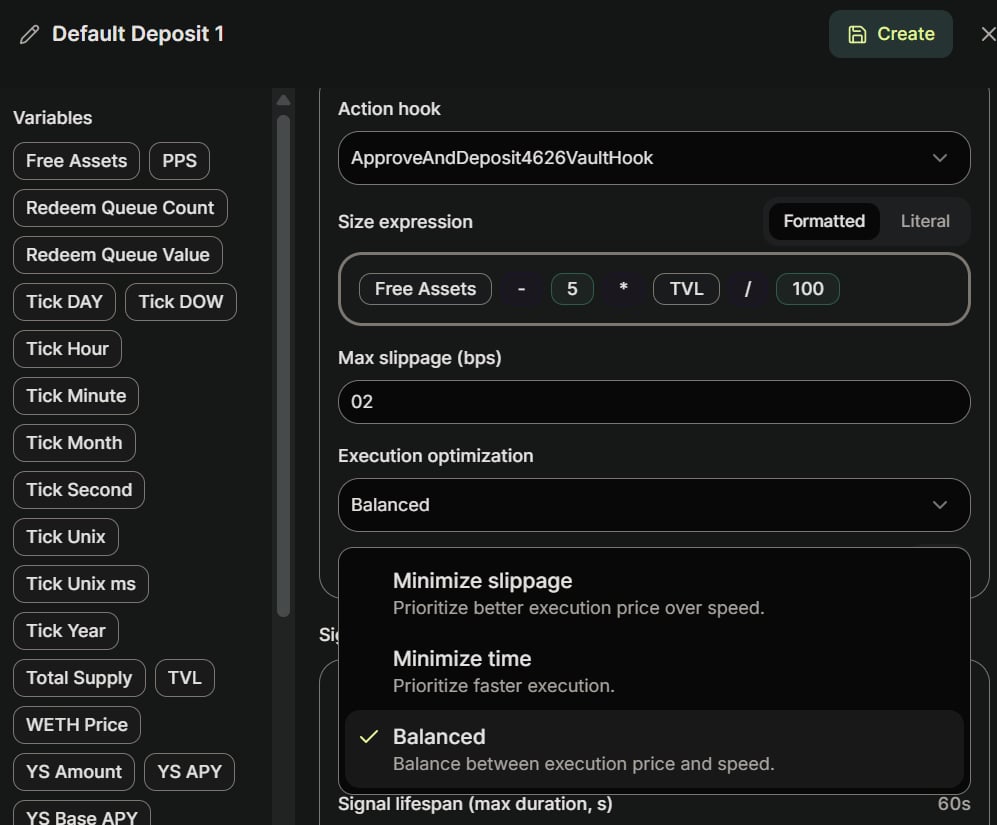 Almost every hook takes an amount. The **Size expression** is a numeric expression that evaluates to that amount. Mirroring the trigger, deposit *only the excess* above the 5% target:
```text theme={null}
Free Assets - 5 * TVL / 100
```
This is non-negative by construction whenever the trigger is true, so the reserve lands back at exactly 5% of TVL. This is the canonical Canvas pattern: the rule is a threshold-breach test, and the size is the closed-form correction that resets the reserve to target.
A deposit sizes in **asset** units (here, WETH). Withdrawals are different — they redeem **shares**. See [Action Config](/operate/strategy/action-config) for the per-action unit rules.
### 7. Set slippage
Slippage is in basis points. The example uses a low `2` bps: depositing into a 4626 vault is effectively slippage-free, but setting it to exactly `0` can revert on tiny rounding in the source's favor, so leave a small buffer.
### 8. Choose execution optimization
Pick how OMS prioritizes execution: **Minimize slippage**, **Minimize time**, or **Balanced**. With no real slippage on a 4626 deposit, the default **Balanced** is fine. Then click **Create** to save.
## Reading a saved strategy
Almost every hook takes an amount. The **Size expression** is a numeric expression that evaluates to that amount. Mirroring the trigger, deposit *only the excess* above the 5% target:
```text theme={null}
Free Assets - 5 * TVL / 100
```
This is non-negative by construction whenever the trigger is true, so the reserve lands back at exactly 5% of TVL. This is the canonical Canvas pattern: the rule is a threshold-breach test, and the size is the closed-form correction that resets the reserve to target.
A deposit sizes in **asset** units (here, WETH). Withdrawals are different — they redeem **shares**. See [Action Config](/operate/strategy/action-config) for the per-action unit rules.
### 7. Set slippage
Slippage is in basis points. The example uses a low `2` bps: depositing into a 4626 vault is effectively slippage-free, but setting it to exactly `0` can revert on tiny rounding in the source's favor, so leave a small buffer.
### 8. Choose execution optimization
Pick how OMS prioritizes execution: **Minimize slippage**, **Minimize time**, or **Balanced**. With no real slippage on a 4626 deposit, the default **Balanced** is fine. Then click **Create** to save.
## Reading a saved strategy
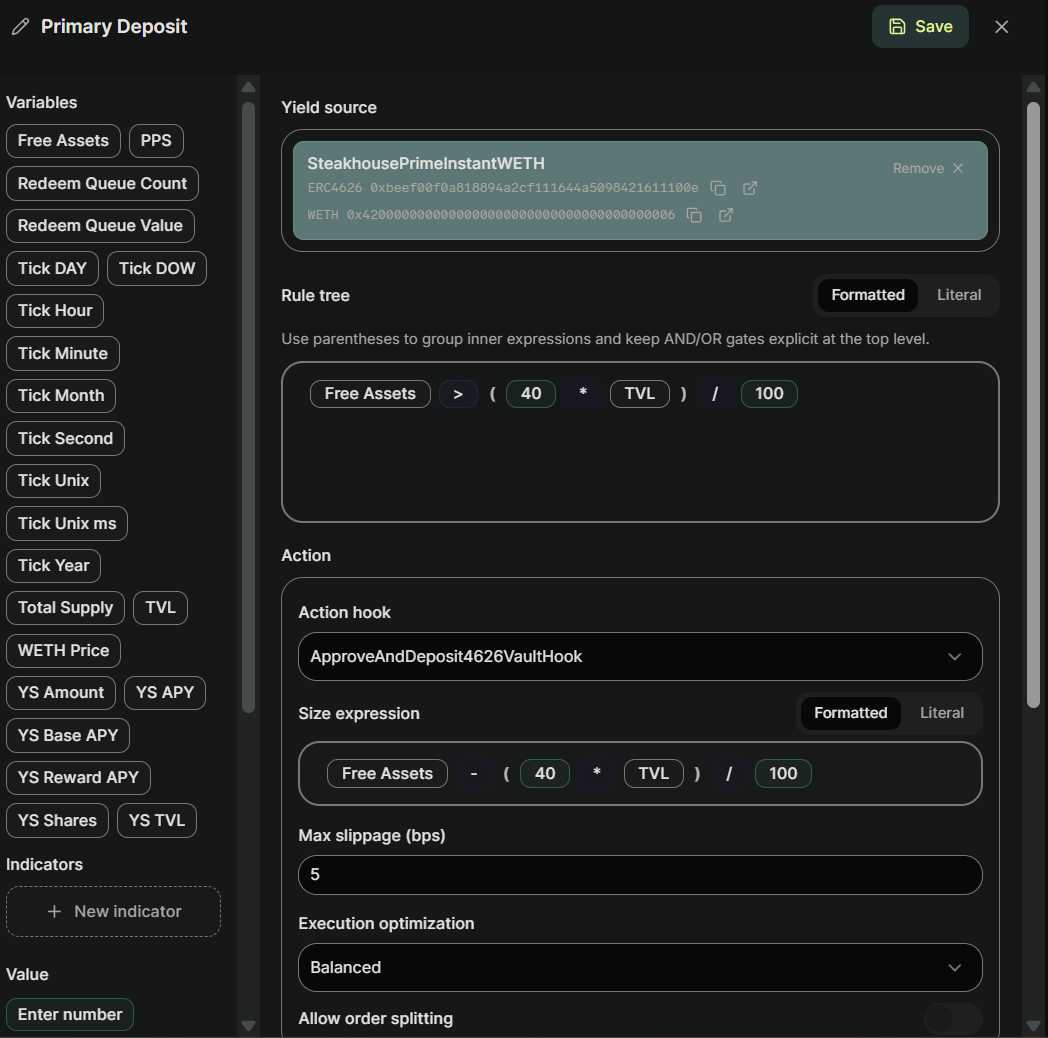 Clicking **Manage** on an existing card reopens the editor with the saved rule and size shown as formatted chips — each pill is one token (variables like `Free Assets` and `TVL`, comparators, operators, literals, and parentheses). The example above uses a 40% target rather than 5%; the threshold is your choice, but the rule/size pattern is identical.
## Next steps
* [Strategy Quickstart](/operate/strategy/quickstart) — the same deposit/withdrawal pair as JSON, ready to POST.
* [Strategy DSL](/operate/strategy/dsl) — variables, operators, and validation rules.
* [Action Config](/operate/strategy/action-config) — hook fields and per-action size units.
* [Intent History](/operate/ui/intent-history) — verify the intents your strategy produces once it's running.
Clicking **Manage** on an existing card reopens the editor with the saved rule and size shown as formatted chips — each pill is one token (variables like `Free Assets` and `TVL`, comparators, operators, literals, and parentheses). The example above uses a 40% target rather than 5%; the threshold is your choice, but the rule/size pattern is identical.
## Next steps
* [Strategy Quickstart](/operate/strategy/quickstart) — the same deposit/withdrawal pair as JSON, ready to POST.
* [Strategy DSL](/operate/strategy/dsl) — variables, operators, and validation rules.
* [Action Config](/operate/strategy/action-config) — hook fields and per-action size units.
* [Intent History](/operate/ui/intent-history) — verify the intents your strategy produces once it's running.